Vidmute / Guide
How to convert video to GIF on iPhone
Turn a short part of a video or screen recording into a shareable animated GIF. Vidmute processes the clip on your iPhone, so you do not need to upload it to a website.
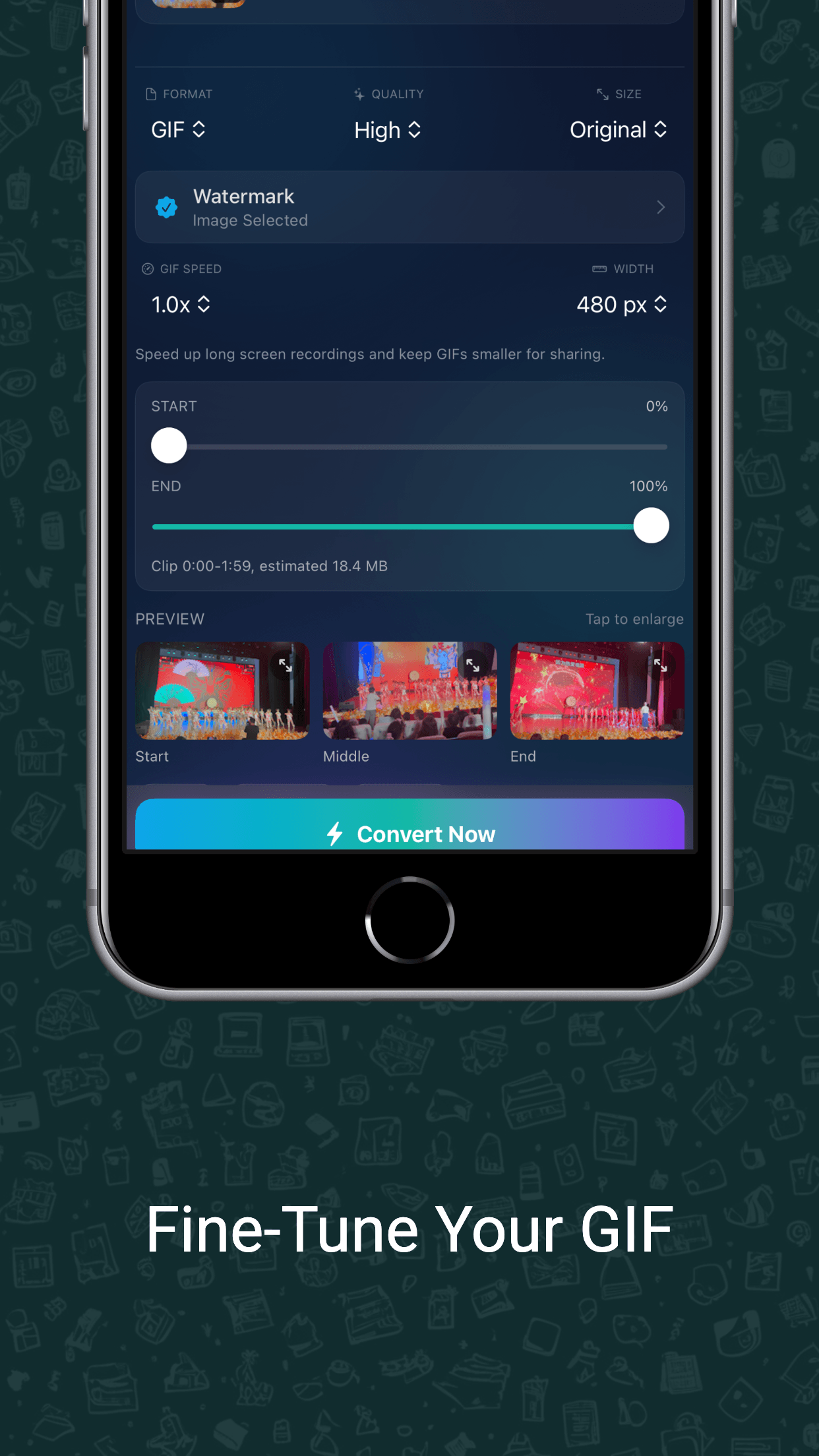
Create a GIF in four steps
- Open Vidmute and choose a locally available video from Photos or Files.
- Select GIF, then trim the start and end to keep only the useful section.
- Choose the playback speed and output width. Preview the result before processing.
- Create the GIF, then save it or open the share sheet.
How do I make the GIF file smaller?
Use a shorter clip, reduce the output width, or increase playback speed. GIF is best for short loops; long, high-resolution footage can create a very large file.
Does the video get uploaded?
No. Creation runs on-device. If the source is stored only in iCloud, download it first; sharing the finished GIF through an online service is a separate action.
More iPhone video tools
Need a normal video file instead? See how to convert MOV to MP4, compress a large video, or extract M4A audio.
Make a GIF privately
See current pricing for your region on the App Store.
View Vidmute on the App Store