MOV TO MP4 ON IPHONE
How to convert MOV to MP4 on iPhone offline
iPhones commonly record MOV files. When a website, editor or another device expects MP4, Vidmute can create a compatible copy without sending the video to a server.
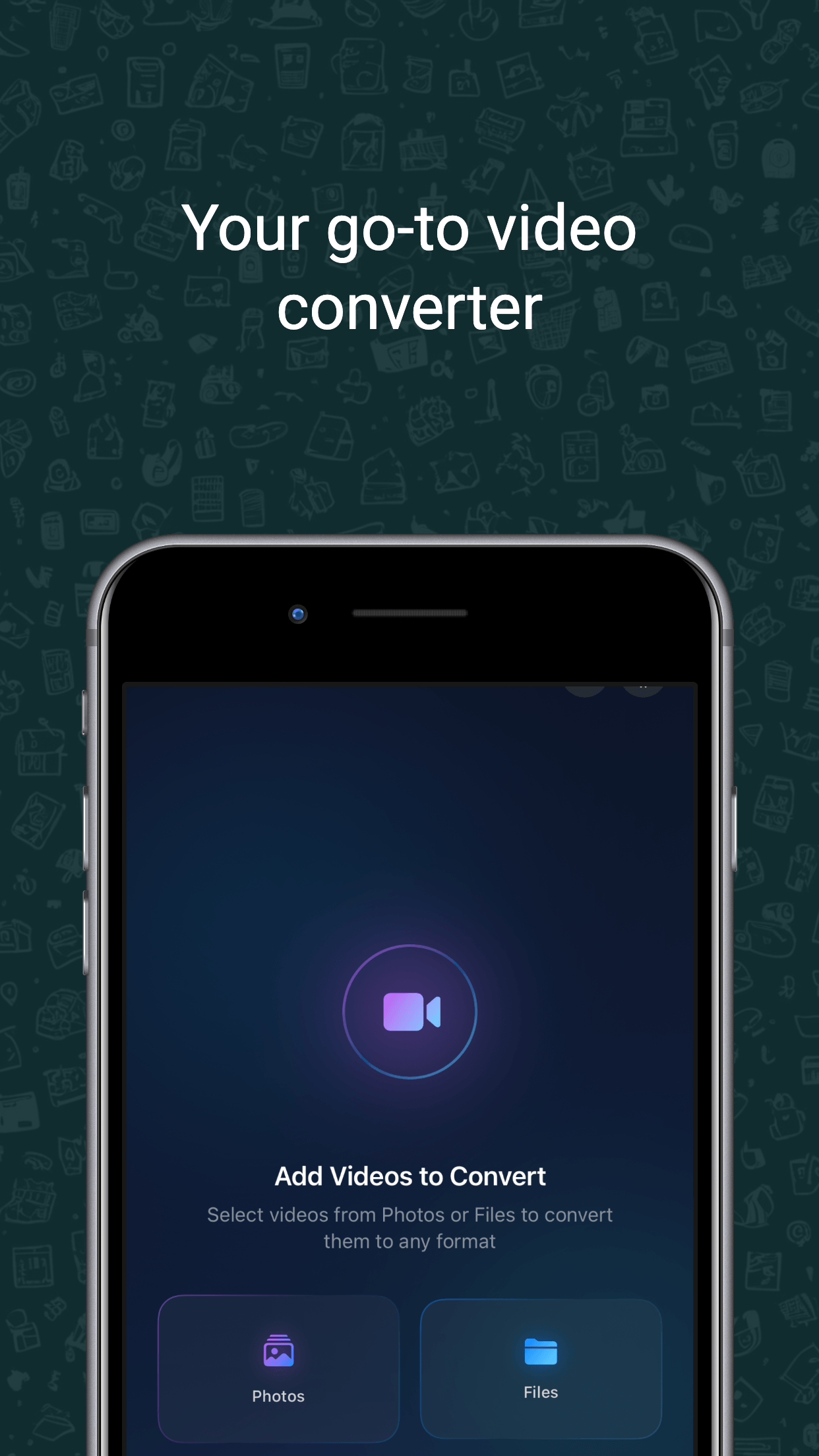
Convert MOV to MP4 in four steps
- Open Vidmute and pick the MOV file from Photos or Files.
- Select MP4 as the output format.
- Keep the original resolution or choose a smaller resolution and quality.
- Convert, preview the MP4 and export it to Photos, Files or the share sheet.
Why convert MOV to MP4?
MOV works well across Apple devices, but some upload forms, messaging services and non-Apple editors accept MP4 more consistently. Creating an MP4 copy can make a clip easier to share without changing the original file.
Conversion versus compression
Changing the container to MP4 does not always make a file dramatically smaller. To reduce file size, also choose a lower quality or target resolution. See the iPhone video compression guide for practical settings.
Is the video uploaded?
No. Vidmute performs the conversion locally with Apple media frameworks. It requires no account and works without an internet connection.
Can every MOV file be converted?
Most videos created by an iPhone or exported by common apps can be processed. A damaged file, unsupported media track or protected video may fail; Vidmute reports failed items separately so completed batch items are not repeated.
Convert MOV to MP4 privately
Keep your video on your iPhone from import to export.
Download on App Store