Vidmute / Guide
Add a watermark to video on iPhone
Place your own text or image mark on a video before sharing it. Vidmute performs the export on your iPhone and does not upload the source to a conversion server.
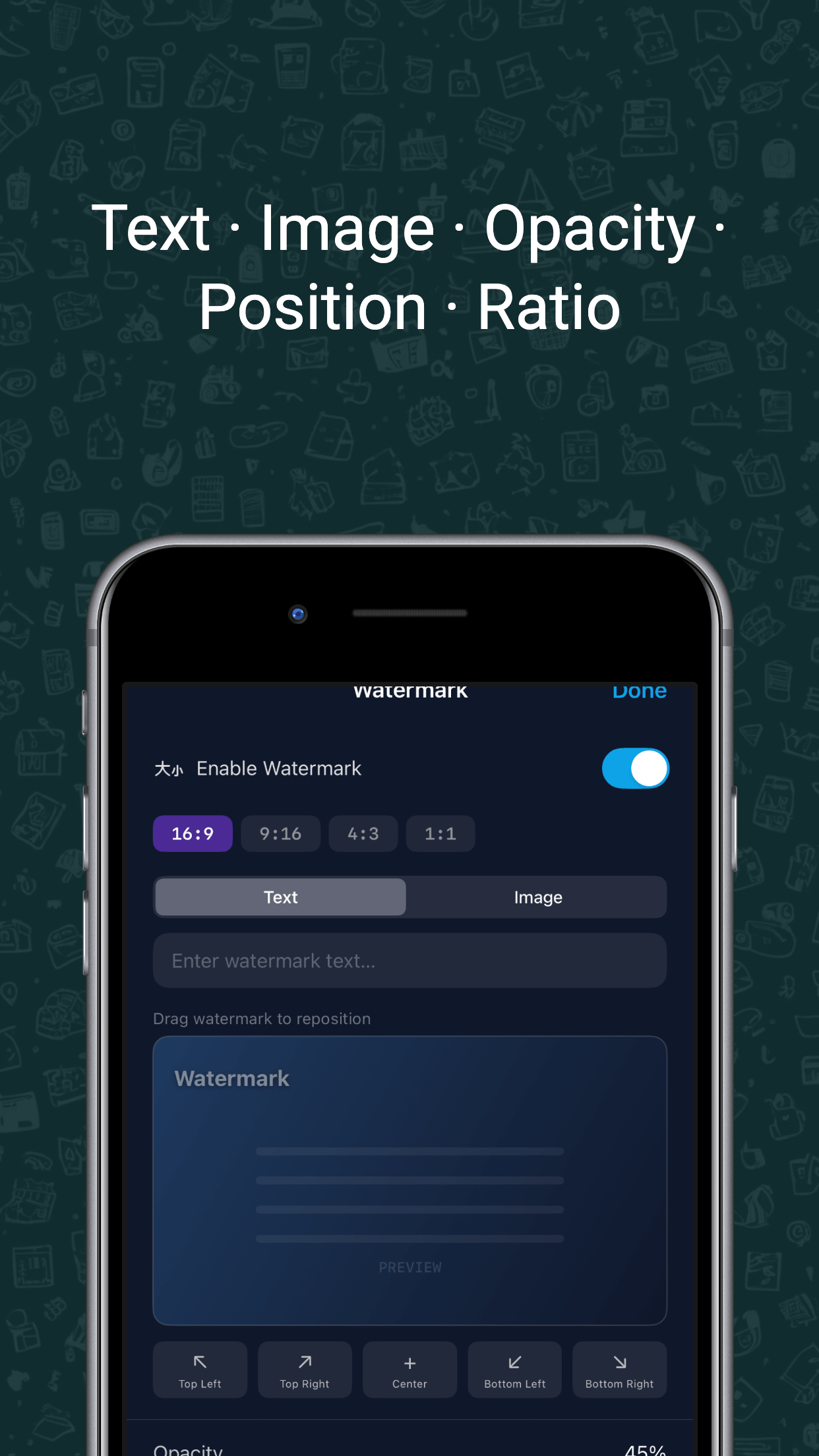
Add your watermark in four steps
- Open Vidmute and select a video from Photos or Files.
- Choose the watermark option, then enter text or select an image.
- Position the mark and check it in the preview.
- Process the video and save or share the exported copy.
Does Vidmute force its own watermark?
No. Vidmute does not add a forced branding mark. The watermark tool is for adding a text or image that you choose.
Is the source video uploaded?
No. Watermark processing happens on-device. Keep the original file until you have checked the exported result.
More Vidmute guides
You can also turn a video into a GIF, reduce video size, or convert MOV to MP4.
Add your own watermark
See current pricing for your region on the App Store.
View Vidmute on the App Store